Showing posts with label Twitter. Show all posts

Tuesday, April 28, 2015

Techie Tuesday - Version 2.7 - Reviewing for Finals with Technology

Good day to you all!

It is almost the end of April which means that final exams will be here before you know it.  I believe that our kids learn so much, but then forget it if they do not use it for months at a time.  (Makes sense right?)  Last year I took the time and started reviewing for finals after each chapter test and during the month of May.  This greatly helped my students score much higher on the semester exams.  Which directly affected my SLO score.  (Woohoo!)  So I thought I would give you 3 fun technology tools that you can also use to get your students prepared for their final exams.

1.  ExitTicket
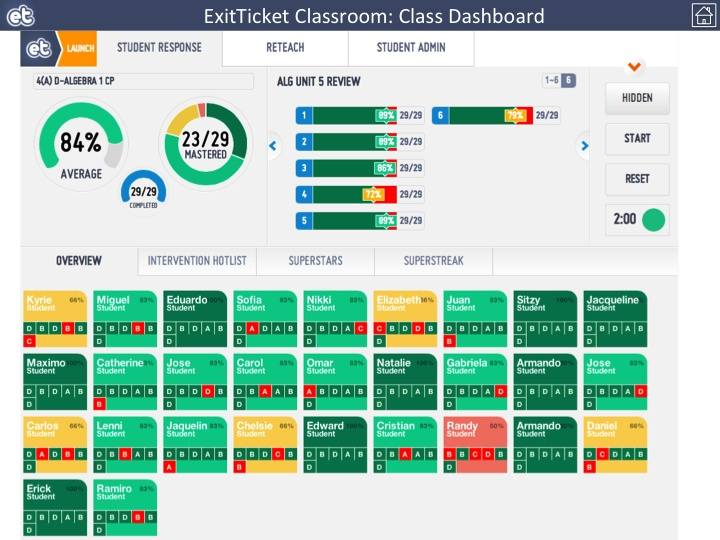
This is my FAVORITE tool I like to use in my classroom.  Aside from the pretty colors, it gives the teacher, and the students, tremendous and immediate feedback!  There is a student app for ExitTicket, but there is not a teacher app.  There are 2 different modes--Presentation mode and Teacher mode.  I leave the "Presentation Mode" on the front board as no student names are shown.  Students can then see how the class is doing as a whole.  I pull up "Teacher Mode" on Google Chrome on my iPad as I walk around the room.  This allows me to see a heat map of how well the students are doing during the assessment.  It allows me to step in and help a student if they are having difficulty as well.  

Like I said before the best part of ExitTicket is the data that you get back.  Below is an image of the class data and question data that is returned to you and the students as they work through the questions.
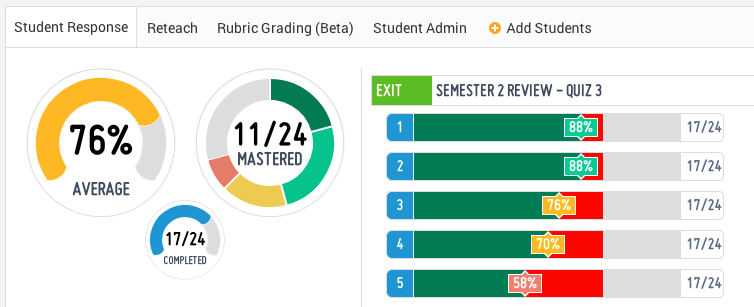
As evidenced by the data, I need to review questions 3-5, but I do not need to spend as much time on questions 1 and 2.  This helps me plan my review.  The class average gives the teacher a quick glance at how the students are doing on the review as well.  The average is not too bad, but I should be worried about how many "mastered" the content.


2.  Socrative - Online Quizzes, Exit Tickets, & Space Race
Socrative is a wonderful online quiz platform that teachers use across the world.  It is both an app AND a website.  There is a Teacher App for you, and a Student App for the students to use.  You may choose to have the students attempt your questions via the phone app or by using their laptop.  If they use their laptop, then they need to go to the web address:  www.socrative.com  Here they will use the Room Number that you provide to the class.  Then you can choose to have the students participate in the quiz as a Teacher Run activity, or Student Run Activity.


As the teacher, you can create multiple choice, true/false, and short answer questions.  They have also added the function of being able to include an image with your question.  Once the activity is complete, the teacher can download a report via email or through Excel.  Teachers can use Socrative as an Entrance Ticket to check student prior knowledge, or they can use it as an Exit Ticket to see what the students learned during the day.  My favorite feature is the Space Race.  It really gets the competitive juices flowing for the students!  


3.  Kahoot is a FREE blended learning and online gaming platform that is available for all.  If you have ever been to BW3s, you will find that Kahoot is similar to the NTN Buzztime game that they offer. Teachers can create their own multiple-choice questions that students must answer either by using their smartphones or their laptops.  


Students will need to go to the web address:  kahoot.it  This will get them to the game lobby where they will input the game pin provided by the teacher.


They will then be prompted to insert a "nickname". Once all the students have given a nickname, the teacher may start the game.  THIS is where the fun begins!  Once the teacher starts the game, the students get to see the question for about 3 seconds, then the multiple-choice options will appear. Students will be rewarded points for each correct answer, PLUS how fast they answer the question. After all students have answered the question, then the top 5 scores will be displayed for all to see. Students really enjoy being able compete for the top 5 spots!  

I wish you and your students the best of luck with the upcoming final exams!

Tuesday, September 23, 2014

Techie Tuesday - Version 2.4 - "Flipped Learning Day"

For the past two years I have "flipped" my PreCalculus classes.  If you do not know what a flipped class is, then you may have been under a rock for the past few years.  The flipped classroom originated by a couple of chemistry teachers from Colorado, Aaron Sams and Jonathan Bergmann.  They really started this revolution on taking the teacher from being a lecturer in front of the class to being a facilitator of learning activities during class time instead.  This method really resonated with me because I was tired of seeing this in my classroom looking like this...


Little did I know there were going to be so many more positives (and a few negatives) with implementing this methodology into my classroom!

So I decided to jump in feet first.  Creating the videos is the most time consuming part of the entire process.  However, once they are created, you will feel a sense of accomplishment (or disgust when you listen to your own voice).  I recommend creating your own YouTube profile and uploading your videos to your channel. I have had one for the past couple of years and it is wonderful having your content out where students can access it from their laptops or other devices.  Once you have your videos uploaded you can share them via Twitter or embed them onto Canvas (TL Campus).  It is also fun to add other videos you may create to your channel.  Below is how visitors are greeted to my YouTube page.


So, with all this being said, I would like to give you a little challenge.  Thursday, October 1st is "National Flipped Day" hosted by the Flipped Learning Network.  I am challenging you to flip your lesson for next Thursday.  (I will be flipping mine because I will be at an in-service the whole day.)  Your lesson does not have to entail the students watching videos all hour, but it can include a video reviewing a previously learned topic, or a video giving them directions.  However you want to do it.  A good place to start creating your videos could be by using Camtasia on your desktop, or by using your iPad with the Educreations or Explain Everything app.  After you create your videos, curate your videos to share with others.  One great recommendation could be reading about Nikie Jenkinson and how she uses Lesson Paths for her students when she is gone.  (The previous week's post.)  So......

I CHALLENGE YOU!

If you have any questions about where to start and how to share your videos with your students, feel free to contact me.  I'll be here all week!

Tuesday, April 15, 2014

Techie Tuesday Version 1.11 - Using Twitter to Connect with Today's Learners

As most teachers do, I like to reflect upon my days as a high school student.  I look back upon what my interests, passions, and future plans were when I was a teen.  Oh how things have changed!  Often times I think of how bored I became in classes in which I was not engaged.  Have you ever wondered what you would be like in today's education setting?  Have you ever wondered how engaged today's teen is when they come to your class?  Maybe you can take a couple of tips from this video.  Take a look at this and see if anything pops out at you.


To me, that is pretty useful information for any teacher to know!  For the past couple of years I have been using Twitter to communicate with my students OUTSIDE of class.  This is the easiest and most productive way to communicate with our 21st Century Learners.  Believe it or not, there are more students that have Twitter over email.  Below are the best methods I use when implementing Twitter for my classroom.

#1 Golden Rule for Twitter-
I ALWAYS tell my students that they can follow me, but I WILL NOT follow them back.  Aside from the legal liabilities we would have as teachers, I do not need to know all the high school gossip.  I think this also gives the kids some faith in me that if they post something (even if they shouldn't have) that their teachers will not know about it.  Believe it or not, most students actually care what we think!

Reminders-
Frequently I will remind students to check class websites (i.e. - TL Campus or WebAssign) for homework or helpful videos.  As teachers, we need to guide our students to resources that help them understand new material they learned in classes.  I have sent some individual students specific websites that they can use to help them with a new topic.  I will also tweet out helpful websites or other "interesting" tidbits about math that they may find interesting.


Answering Student Questions-
The use of a smartphone with a camera is one of the most useful tools a student can use to ask teachers questions when they have them.  Students have really taken to the ability of asking me questions they may have while working on their homework.  I have had great success with students sending me pictures of their work where I can see what they have done.  This is the best way for me to review their work and help them with whatever mistake they may have.

Videos-
For my upper level classes I will tweet out videos of example problems I have done from their notes.  I find that if I send a tweet of the video, as well as post it on my website, students are more apt to use it as a "reminder"/study aid for helping them with their homework.  If a student asks me a specific question, then I can solve it on my iPad and give them instructions as I solve the problem.  I can them tweet it back to that student.  I also like to tweet out some funny videos that I find or that I have created in the past.  This just keeps the students engaged and keeps them watching my feed.

Use Hashtags-
I use 4 main hashtags for my math classes--#tlmath  #tlprecalc  #tlalg2  #tlalg1  These hashtags allow students to search for any tweets that relate just to their class.  Hashtags are also useful for students to share any questions they have for other Twitter users to help them solve their problem.

Student Accomplishments-
Need I say more?!?!  What a way to get student engagement outside of class.  Who doesn't like having their accomplishments broadcast to the world?


Finally, here is a little video that may make you laugh, cry, or just run away from Twitter.  Ha!  With that being said, if you have any questions, please feel free to connect with me (@MrKline_TL) or email me.  I'll be looking for you on Twitter soon!


Tuesday, April 8, 2014

Techie Tuesday Version 1.10 - Professional Development through Twitter

It has been a little bit over 2 years since I started engulfing myself into education technology.  I was lucky enough to accompany Mr. McAtee to a 2-day education technology workshop at Monticello's Ivy Tech.  These sessions were hosted by Mr. John Kuglin (www.kuglin.com).  He opened my eyes to a multitude of possibilities for the uses of technology in the classroom.  (Even in the math classroom.)  Since that time, I have been lucky enough to attend multiple other conferences and workshops that cover technology in the classroom.  When I return from each conference I cannot wait to try something new in the classroom.  It does not necessarily always go as planned, but I still like the anticipation feeling that I get when trying something new that is not "paper-and-pencil".

After attending edtech conferences I really enjoy sharing the new knowledge I have attained.  (Hence, the creation of this blog, as an example.)  Lately, I have had colleagues start asking me if I learned anything new that I would be willing to share.  OF COURSE!  How else will we prepare our students for 21st Century jobs unless we share our experiences and knowledge, right?  

Now, there are lulls in my schedule (just like all teachers) where I cannot attend a professional development conference.  So you may ask, "Where do you learn new education technology tips when you do not attend a conference?"  Well, it's easy...Twitter!  Almost every night before I go to bed I like to take the iPad or iPhone out and check on the lastest edtech musings from around the globe.  Twitter allows me to do this.  Here is a quick introduction to the many things you can do with Twitter.


One of the most useful tools for Twitter is the ability to join in Twitter chats by using hashtags.  For example, each Thursday from 8-9 PM I try to attend the #INeLearn chat.  The typical format is one where the facilitator will pose about 5 questions throughout the hour.  Participants can respond to these questions by answering in 140 characters or less and by using the #INeLearn hashtag.  Just last week I participated in the #INeLearn chat.  See the picture below.


Last week I also made a new connection with a math teacher at Noblesville HS.  Through our Twitter exchange, we were also able to tag other companies by using their profile address.  See how they responded a couple days later.


Here are a few of the hashtags I like to use and follow:
#INeLearn
#algebra1
#algebra2
#precalc
#edtech
#edchat
I'll go over how I use hashtags with my classes in a future post.

If you have any interest in starting your own Twitter account, feel free to ask me any questions you may have.  But be careful...you may just find something useful out there.  And if you do, don't hesitate to follow me: @MrKline_TL  Below are some helpful strategies for the use of Twitter in your professional (and personal) life.

7-Effective-Ways-To-Engage-On-Twitter-Infographic
Find more education infographics on e-Learning Infographics

Tuesday, February 25, 2014

Techie Tuesday - Version 1.8 - 1815 Technologies vs. 2014 Technologies

In 1815 there was a concern for Principals regarding technology in the classroom.  It was paper.


It is kind of funny how things have changed from possibly running out of paper to nowadays running out of bandwidth.  Not too long ago I can easily remember learning how to use a technology phenomenon known as the graphing calculator.  Now...it's learning multiple technologies for the classroom!

Whether you want to believe it or not, we have a duty as teachers to give our students multiple chances of using technology to help them in their academic endeavors.  Check out this video of a 7th grader!


Can you say WHOA!?!?  It is understood that this student had to learn the use of these technologies from somewhere.  I can't imagine it was from her friends.  Can you imagine how resourceful this young girl will be when she goes to interview for a job in the future?  Now, is it expected that you know ALL of these technologies and share them with your students...NO.  But you can start some place, right?  Where is that "some place" then?  I know it will be different for each of us.  But the real question is, if you don't know where to start, will you even start at all???


FEATURE TECHIE OF THE WEEK:  Mr. Michael Tetrault

"I particularly love using technology in class because it brings French to life for students.  A common complaint I hear is that "you just can't use French in Indiana/White County/Monticello/etc."  But with social media, Skype, YouTube, extensive online dictionaries, and language forums, students very easily connect with authentic French speakers and create links with people around the globe.  

I have a French friend who teaches English in southern France, and we have had several Skype sessions between our classes.  The TL students speak face-to-face, in real time, with the students in France.  Both sides speak both languages as needed to help each other understand, and students can get answers to their cultural questions if they want to hear straight from another teenager.

We also have a cart loaded with some iPods, and there is an app we use to create video slideshows with accompanying audio.  Students record their voices while they arrange pictures from their summers, and they tell the story of how they spent their summer break.

Recently I created a Twitter account (@TLHSTetrault) to post interesting videos or news from the French-speaking world in order to reach students who use Twitter extensively.  I have also created a Facebook page for use with my travel groups.  The bottom line is that students are using French and being exposed to the language outside of the 88-minute window every other weekday.

For several years, I have also had students complete a recipe project, where they make a food, create a recipe in French, then bring in the food and present their recipes.  I started to get bored of seeing the parade of poster boards, so I encouraged students to think outside the box.  The results were a lot of fun; for example, students created videos on their phones and added music and text overlays to add a lot of interest to the project.

I have students in 3rd year search the internet for French news articles on a regular basis, and it is a ton of fun for me because A) they're exploring at their own pace as they find what interests them, B) when they present their findings, we get to have in-depth conversation about topics and cultural perspectives that our textbook would never discuss, and C) students take ownership of the things they find, and they enjoy presenting their materials and leading the conversation.

Of course, YouTube is a great resource as well, because I can show all kinds of videos that pique students' interest: French commercials, news reports, comedians, French pranksters doing funny things (speaking French the whole time, and kids still want to see it!), and music videos.

Frankly, I am jealous of students today that can use technology and the internet to see and learn anything they wish.  Even though Google existed when I was in high school, my learning was mostly confined to whatever was found within the binding of my textbook.  Now that the social aspect of the internet is much more vast, students can take their learning as far as their imagination reaches."

WOW!  Thanks for sharing, Michael.  Exciting things happening in French!

Monday, January 13, 2014

Techie Tuesday - Version 1.2 - How Do You Want to Use Your iPad?

The first day of iPad training is now behind us.  We had a total of 16 teachers attend the session, which is astounding considering the short notice.  (Once again, I am sorry.)  It was refreshing and exciting to see teachers of all abilities learn something new on their iPad.  Even though the day was an "Introduction to the iPad", I feel that everyone benefitted and learned something regardless of their comfortability with the iPad.

I am planning on hosting another session very soon, possibly next week.  This session will focus more on specific apps and their capabilities in the classroom.  There are literally thousands of apps available in the App Store for you to look at.  Here is Richard Byrne's (an education technology expert) thoughts on the "10 Good Apps for a Teachers New iPad".  There may be some on here that do not interest you, but there may be some that you may want to check out.  Remember, you can always delete the app if you do not like it by holding down the app until it jiggles and then clicking on the "x".

Here are a couple apps you will want to try at your leisure:
1.  Flipboard (FREE) - Flipboard is an app that allows you to read magazines and articles all in one handy place.  Once you open Flipboard, you can choose topics that interest you.  It will suggest multiple options for you to read.  You will be surprised how many FREE magazines are available through FlipBoard!  There are popular magazines as well as other magazines that have been created by other people.  It is pretty neat to see what other people around the globe can curate and create.  You can also set up your social media (Twitter, Facebook, etc.) and view it through Flipboard as well.  I really enjoy this app for personal use.


2.  Edmodo (FREE) - If you have been using Edmodo in your classroom and want to be able to use it on your iPad, then download this nice little app.  It is fully functional, even though it may look a little different from how you view it from a web browser.  (If it is blocked on your iPad at school, then the filter is blocking it, even though it is on your iPad.)  You can view each of your classes, create notes, attach files from your Backpack, and answer questions that some students may ask you through their own app on their phone or tablet.


Before you start downloading too many apps, you may want to ponder the question, "How do I want to use my iPad in the classroom?"  Fine question.  Do you want to be able to use it to take attendance?  Do you want to be able to pull up the internet while walking around the room?  Do you want to have students solve a problem and then present their solutions to the class?  Do you want to use it as a means of creating videos, whether for flipping your classroom or making fun videos to engage the students?  These are all viable questions and they are a good place to start for you.  So, after you get done "playing" with your iPad for a while, really ask yourself, "How do I want to use this expensive paperweight?"  If you need suggestions, all you need to do is search on Google or even Flipboard.  If you have any ideas, please do not hesitate to share with your colleagues.  You never know, they may have a way to help you out.


Tuesday, January 7, 2014

Techie Tuesday - Version 1.1 - Sharing Educreations and iPad Covers

Hello, all!  I imagine with the couple extra days of break you are thinking to yourself, "Self, I sure wish I could do something exciting with this iPad of mine."  Well, you are in luck!  You can!  Here is 1 option:   http://telly.com/1GXZ57L  Okay, so maybe that wasn't what you were thinking.  But that was done using an iPad and easily sharing the video via Facebook, Twitter, and through iMessage.

Have you ever thought how nice it would be to create a quick video of instructions or directions and to share it with your students?  This is one of the GREATEST capabilities of using an iPad.  Before we left school I showed you the Educreations App and how nice and easy it is to create a video.  So how about sharing that video to your students?  Here is a quick video of how to share your video through the app and through the website.


 So here is my first challenge to you!
1.  Think about an activity you do in class that you usually have to repeat instructions 2-5 times each year, or semester.  (This always drives me nuts as well.)
2.  Create a video of you explaining the directions to your students using the Educreations app.
3.  Share the video with a couple of your colleagues via Twitter, Facebook, or a link so others may critique your work.  Can your peers follow your instructions?  Are the directions clear?  What could make your instructions clearer?

Below is my instructional video.  (I did import a picture using the "picture" feature at the top.  If you want to know how to take a screenshot of something on your iPad, push these 2 buttons at the same time.)  Feel free to give me comments back.


COVERS AND KEYBOARDS

Since you have been given a nice shiny $500 "toy", you want to protect it from anything happening to it.  There is a plethora of choices for you to look at.  It all depends on how much you think you will use your iPad and for what uses.  I picked up a cheaper version of a cover at WalMart and it worked just fine for recreational use.  This last time I invested a little more money and picked up the Zagg Portfolio
with a Bluetooth keyboard.  I already know I won't use the keyboard for writing long assignments on Word or Google Docs, but it is really nice to use with email, Twitter, or other short items I need to type.  So here are some options you may look at along with some prices.


Happy shopping!  Let me know if you have any questions.