Showing posts with label Web Tools. Show all posts

Tuesday, April 28, 2015

Techie Tuesday - Version 2.7 - Reviewing for Finals with Technology

Good day to you all!

It is almost the end of April which means that final exams will be here before you know it.  I believe that our kids learn so much, but then forget it if they do not use it for months at a time.  (Makes sense right?)  Last year I took the time and started reviewing for finals after each chapter test and during the month of May.  This greatly helped my students score much higher on the semester exams.  Which directly affected my SLO score.  (Woohoo!)  So I thought I would give you 3 fun technology tools that you can also use to get your students prepared for their final exams.

1.  ExitTicket
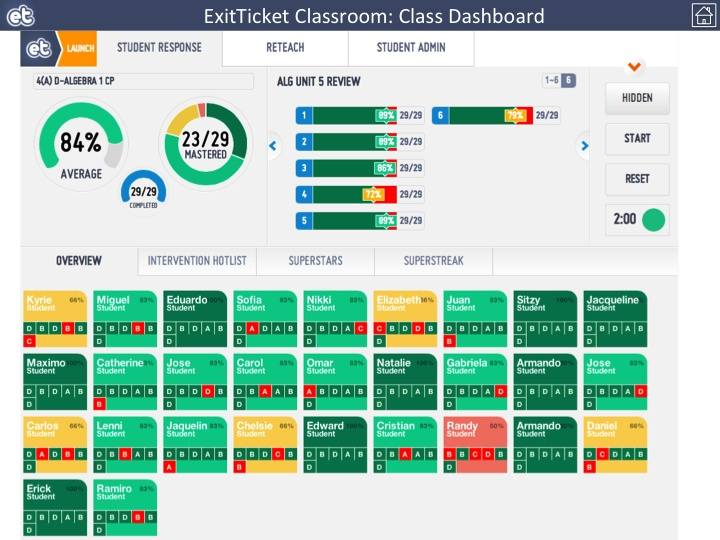
This is my FAVORITE tool I like to use in my classroom.  Aside from the pretty colors, it gives the teacher, and the students, tremendous and immediate feedback!  There is a student app for ExitTicket, but there is not a teacher app.  There are 2 different modes--Presentation mode and Teacher mode.  I leave the "Presentation Mode" on the front board as no student names are shown.  Students can then see how the class is doing as a whole.  I pull up "Teacher Mode" on Google Chrome on my iPad as I walk around the room.  This allows me to see a heat map of how well the students are doing during the assessment.  It allows me to step in and help a student if they are having difficulty as well.  

Like I said before the best part of ExitTicket is the data that you get back.  Below is an image of the class data and question data that is returned to you and the students as they work through the questions.
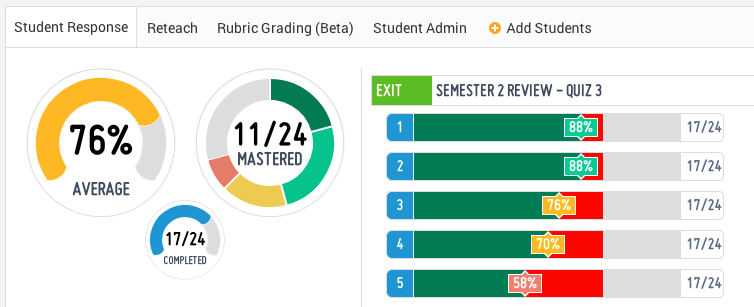
As evidenced by the data, I need to review questions 3-5, but I do not need to spend as much time on questions 1 and 2.  This helps me plan my review.  The class average gives the teacher a quick glance at how the students are doing on the review as well.  The average is not too bad, but I should be worried about how many "mastered" the content.


2.  Socrative - Online Quizzes, Exit Tickets, & Space Race
Socrative is a wonderful online quiz platform that teachers use across the world.  It is both an app AND a website.  There is a Teacher App for you, and a Student App for the students to use.  You may choose to have the students attempt your questions via the phone app or by using their laptop.  If they use their laptop, then they need to go to the web address:  www.socrative.com  Here they will use the Room Number that you provide to the class.  Then you can choose to have the students participate in the quiz as a Teacher Run activity, or Student Run Activity.


As the teacher, you can create multiple choice, true/false, and short answer questions.  They have also added the function of being able to include an image with your question.  Once the activity is complete, the teacher can download a report via email or through Excel.  Teachers can use Socrative as an Entrance Ticket to check student prior knowledge, or they can use it as an Exit Ticket to see what the students learned during the day.  My favorite feature is the Space Race.  It really gets the competitive juices flowing for the students!  


3.  Kahoot is a FREE blended learning and online gaming platform that is available for all.  If you have ever been to BW3s, you will find that Kahoot is similar to the NTN Buzztime game that they offer. Teachers can create their own multiple-choice questions that students must answer either by using their smartphones or their laptops.  


Students will need to go to the web address:  kahoot.it  This will get them to the game lobby where they will input the game pin provided by the teacher.


They will then be prompted to insert a "nickname". Once all the students have given a nickname, the teacher may start the game.  THIS is where the fun begins!  Once the teacher starts the game, the students get to see the question for about 3 seconds, then the multiple-choice options will appear. Students will be rewarded points for each correct answer, PLUS how fast they answer the question. After all students have answered the question, then the top 5 scores will be displayed for all to see. Students really enjoy being able compete for the top 5 spots!  

I wish you and your students the best of luck with the upcoming final exams!

Tuesday, March 17, 2015

Techie Tuesday - Version 2.6 - Engaging Students with Alternative Technologies

Hello, all.  It has been a little while since I last posted.  I have had plenty of "fun" activities that have taken up some time in my life lately that I'd like to share.  Now I can't share all of it because I am sworn to secrecy, as is Marcus P., but I can tell you, it's been pretty awesome!!

For the past 4+ months Marcus and I have had the kind of professional development experience that most educators dream about.  We have met some of the most inspirational educators and advocates for all ages of students.  We have met with representatives from the Indiana Department of Education.  We have planned lessons with some of the hardest working individuals that Indiana has to offer.  We have traveled to Indianapolis multiple times.  We have even made a trip out to California to fly drones on a beach and make a video with a GoPro in one of the tallest buildings in Los Angeles.  We have worked countless hours, on top of our normal teaching job, to create something that is original and powerful for teachers and students alike.  In due time, you will get to see some of the work that our group has created.  But for the present time, I will let you in on one little secret...each lesson plan hinges on one major hook--technology!

Technology is all around us.  It is embedded in our every day lives.  I bet as you are reading this, it is probably on your desktop...or your iPad...or your phone.  Heck, it may even be from a link shared on Twitter.  Regardless of how you read this post, it is online and it is accessible everywhere.  This is how students live their lives.  They have profiles on Twitter, Facebook, Instagram, and SnapChat just to name a few.  Some may even have Google+ profiles.  And so do you!  You also have a Google Drive.  You have your own YouTube channel.  And you also have your own Gmail account.  Did you know that?!?!

So how can we leverage these technologies to better engage our students?  It takes time.  It takes time to be able to think "outside the box".  It takes working with one another to look at a lesson plan and discuss "How can this be better?"  "How can I get my students engaged more in class?"  You must use technology for more than how it has been used in the past.  I will let you know, it is not by just having a student word process a paper.  That is not the best use of technology in your classroom.  How many years have we been doing that?  I know I was doing it in high school 20 years ago.  (Oh man, I just dated myself.)  Instead, have them start their own blog for your class.  Have them write for a worldwide audience!  Everyone reads the school newspaper.  But does everyone read a student narrative on Julius Caesar?  How can this lesson be better with technology?  Marcus did a wonderful job incorporating Sphero balls and mazes in a lesson from the book, Flowers with Algernon.  He made the comment that his students have never been so engaged.  (If you want the whole scoop then you need to speak with him on the lesson.)

So this brings me back to the point, "How can we get our students more engaged?"  The ultimate solution for this teacher is technology.  This is the world we live in now, folks.  It is the world our students need to be prepared for.  And it is the world in which we should be preparing them to be successful.

Tuesday, September 23, 2014

Techie Tuesday - Version 2.4 - "Flipped Learning Day"

For the past two years I have "flipped" my PreCalculus classes.  If you do not know what a flipped class is, then you may have been under a rock for the past few years.  The flipped classroom originated by a couple of chemistry teachers from Colorado, Aaron Sams and Jonathan Bergmann.  They really started this revolution on taking the teacher from being a lecturer in front of the class to being a facilitator of learning activities during class time instead.  This method really resonated with me because I was tired of seeing this in my classroom looking like this...


Little did I know there were going to be so many more positives (and a few negatives) with implementing this methodology into my classroom!

So I decided to jump in feet first.  Creating the videos is the most time consuming part of the entire process.  However, once they are created, you will feel a sense of accomplishment (or disgust when you listen to your own voice).  I recommend creating your own YouTube profile and uploading your videos to your channel. I have had one for the past couple of years and it is wonderful having your content out where students can access it from their laptops or other devices.  Once you have your videos uploaded you can share them via Twitter or embed them onto Canvas (TL Campus).  It is also fun to add other videos you may create to your channel.  Below is how visitors are greeted to my YouTube page.


So, with all this being said, I would like to give you a little challenge.  Thursday, October 1st is "National Flipped Day" hosted by the Flipped Learning Network.  I am challenging you to flip your lesson for next Thursday.  (I will be flipping mine because I will be at an in-service the whole day.)  Your lesson does not have to entail the students watching videos all hour, but it can include a video reviewing a previously learned topic, or a video giving them directions.  However you want to do it.  A good place to start creating your videos could be by using Camtasia on your desktop, or by using your iPad with the Educreations or Explain Everything app.  After you create your videos, curate your videos to share with others.  One great recommendation could be reading about Nikie Jenkinson and how she uses Lesson Paths for her students when she is gone.  (The previous week's post.)  So......

I CHALLENGE YOU!

If you have any questions about where to start and how to share your videos with your students, feel free to contact me.  I'll be here all week!

Tuesday, September 9, 2014

Techie Tuesday - Version 2.2 - Notability and Techie of the Week!

As the school year starts, so do meetings and conferences.  If you are like me, I usually find myself at multiple meetings a week and usually a conference every other month.  Well, how do you keep all of your notes organized?  I used to file them in a folder with the intention that I would look at them at a later date.  Uhhhhh...yeah.  Rarely happens.  So I did a search at the App Store and found my golden nugget--Notability!

Well let's get the bad news out of the way first off.  The app is $2.99.  But it is possible that its the best $2.99 that I've ever spent.  Notability downloads on your iPad and starts you off with a beautiful interface and an easy to read User Guide.  (See image to the left.)  This is the first thing you should read.  Aside from being able to hand-write or type your notes, you can also insert images, sticky notes, and web addresses.

The main features that I really love are the abilities to upload PDF files and the use of the palm guard while writing my notes!  For each of our school meetings, I use Notability to upload the meeting agenda from our principal, and then I can write all over it.  I also like the PDF uploader for uploading all of my answer keys for assignments, quizzes, and tests.  This is a major paper saver that I am sure Carl would really appreciate!  (GO GREEN!)  The palm guard is very useful so you can rest your hand on the screen without making marks from your palm rubbing as your write.

All-in-all, I would highly recommend purchasing this app.  The $2.99 is well worth it and you will not be disappointed.

Featured Techie Of The Week:  Chip Dale

I am using TL Campus mainly as additional reference material for all my classes. I currently am using 2 portions of the program: the calendar and the modules section. I am planning on adding a third remedial quiz section for students who do not score an 80% or higher on a unit test, but that is still in the works.

Daily Objectives and Homework (takes about 1 minute total out of my day for all my classes)
In the calendar I use my iPad to take a picture of my objective and homework off of my whiteboard, and tag each individual day the kids were in class. This has served a few purposes: kids who forget to write down their homework in their agenda, absent work, and also give parents a place where they can see what their kid is doing/has done each day.
To upload images to the calendar for each class:
1)  Open Safari on your iPad
2)  Log into tlcampus.com
3)  Click the Calendar tab at the top
4)  Click the day you want to upload a memo
5)  When the dialog box opens for an assignment, click the drop down box and select the class you are tagging
6)  Click more options to open the editable text options window
7)  Type in any information in the title and body
8)  Click the image tab on the right hand side
9)  Click upload new image and choose "Take a Photo"
10)  Take the picture
11)  If you have folders to store information choose the folder you want it to store in, or just click upload in the image menu
12)  Click update event on the text editor


Daily Resource Section (takes about 5 minutes per class)
 In the Modules section each day I post a pdf copy of the daily notes for my class, as well as I try to link to at least 2 additional internet based resources for each lesson. The PDF is created in a free version of the iPad app PowerPDF, and stored in my DropBox account which makes it easy to upload on my computer. The free version can make the images look a little fuzzy but it works good enough to get the notes out to the masses. 
                                 

With the additional resources I try to post at least one video resource (YouTube/Khan Academy/etc.) and one interactive learning activity (online game/Khan Academy/etc.) that ties into the concepts. This takes a little longer than the calendar because each page and PDF needs to be created, and then I need to go out and find some good resources to match up with the daily lesson.


This has served some great purposes as well: students who need extra help but aren't willing to ask now have additional resources at the ready, absent students now have access to their missing notes for the day, and students who might have forgotten the lesson when they go to do their homework now can get a reminder of what happened that day. If anyone is interested I'm more than willing to show them how I do it. It is definitely as easy as the calendar to do, but I have found its quickest if I use both my iPad and computer so the steps are a little longer and would be confusing if I tried to just write them out. The jest of it is I use PowerPDF to create the notes; store them in my DropBox account which is linked to my computer; and then use my computer to create the modules page, upload the pdf, and post resources to the page.

Thanks, Chip!  If you have any questions, do not hesitate to contact Chip and he will get you straightened out.

Tuesday, September 2, 2014

Techie Tuesday - Version 2.1 - What Do YOU Want From Professional Development!

For many years, schools and teachers in Indiana had professional development days built into their school schedule.  Unfortunately, a few years ago these days (PD days) were taken away and teachers had to find new ways to keep up-to-date with changes in standards and technologies.  For a lot of us it is difficult to stay after school for an extra hour and devote time to learn for ourselves.  Personally, I usually need to leave school no later than 4 PM in order to pick up a couple of my kids that happen to be in two different locations. But whether it is grading, family obligations, coaching, or a 2nd job, our time is valuable after 3:30.  That brings me to my question for you.


What do YOU want from professional development?  

I spent a lot of time this summer attending and presenting at conferences this past summer.  (If you did not have a chance to attend any of the Summer of eLearning conferences hosted by the Indiana DOE, I would highly recommend you look into attending a local one next summer.  Hopefully here at Twin Lakes!)  It was great to hear the keynote speakers and listen to their ideas for technology integration into the classroom.  There were multiple classroom teachers that hosted hour-long breakout sessions on specific topics.  Their passion for their profession was very evident in their presentations.  Most of them even had sensible ideas that would work well in our own classrooms.  :)


After sitting through multiple sessions I was able to come to one major realization for each session I
attended--always leave the audience with something they can use TODAY!  Throughout this year, the technology department is planning on hosting multiple professional development opportunities this year.  We have some great ideas planned for you that will cover Canvas, online assessments, video/photo editing, etc.  However, we are always open to ideas of items you would like to learn about.

So this brings me back to my original question--what do YOU want from professional development?  Let members of the tech committee know what would make your life easier and we will work to find a possible solution for you.  If you would like some help during your prep period, or before or after school, do not hesitate to contact us.  If you cannot make an afternoon session, let us know and we will make contact with you the next day.  Maybe you would like a video of the session to watch at a later time, we will work on making that happen as well.  We are all in this together, so let's learn together and make our school year, plus our students, a memorable and technological one!

Tuesday, March 4, 2014

Techie Tuesday - Version 1.9 - Kahoot and Techie of the Week!

In celebration of the IHSAA boys' basketball sectional starting this week, I figure everyone might be in the mood for some gaming in their classroom.  This week I was able to play a short review game with a couple of my classes.  Nothing gets students more excited for class than a good old fashioned review game. Thanks to Desiree Swaim and her brother, Chris Young, my class enjoyed a competitive game of Kahoot.  BUT I MUST WARN YOU...if you read on, you must be prepared for your students to really be engaged in your class!


Kahoot is a FREE blended learning and online gaming platform that is available for all.  If you have ever been to BW3s, you will find that Kahoot is similar to the NTN Buzztime game that they offer. Teachers can create their own multiple-choice questions that students must answer either by using their smartphones or their laptops.  


Students will need to go to the web address:  kahoot.it  This will get them to the game lobby where they will input the game pin provided by the teacher.


They will then be prompted to insert a "nickname". Once all the students have given a nickname, the teacher may start the game.  THIS is where the fun begins!  Once the teacher starts the game, the students get to see the question for about 3 seconds, then the multiple-choice options will appear. Students will be rewarded points for each correct answer, PLUS how fast they answer the question. After all students have answered the question, then the top 5 scores will be displayed for all to see. Students really enjoy being able compete for the top 5 spots!  

Can you think of a review day activity that you think needs a little "spicing up"?  If so, then Kahoot is for you!

FEATURE TECHIE OF THE WEEK:  Mrs. Lisa Wheeler

I have been using multiple sources of technology with my students throughout the school year.  Much of the time I use the ELMO projector to present information and go through daily warm-ups with my students.  The ELMO has given me an easy way to integrate technology with my current lessons, and it is virtuously painless!  In addition, my students use laptops to complete most written assignments and projects, and they electronically submit work via email and TL Campus.

Recently, I had my students split into groups and research different topics regarding William Shakespeare and The Tragedy of Romeo and Juliet. As the groups researched their given topics, group members initiated roles of organizing and compiling information into a PowerPoint presentation that they then presented to the class.  Students needed little assistance from me during the research process, aside from determining website validity and properly citing sources. 

The groups submitted their Power Point presentations to TL Campus.  I made a folder on my computer for each of my classes, gathered the TL Campus submissions, and sorted them into their designated folders.  From there, all I had to do was open the presentations.  Finally, the students presented their information on the big screen to their classmates, using my iPad.  How?  DOCERI!  The Doceri program was already setup on my iPad and computer, so I just had to turn on Doceri on both devices.  Students were then able navigate through their presentations from the iPad without having to turn away from the rest of the class.  It was fun for them, and it enhanced the quality of their overall presentations.  I’m excited to try more technology in the future!

Thanks, Lisa!  If you have any questions on how to implement some more technology into your classes, feel free to speak with Lisa about a demonstration on how she uses Doceri in her classroom.

Tuesday, February 25, 2014

Techie Tuesday - Version 1.8 - 1815 Technologies vs. 2014 Technologies

In 1815 there was a concern for Principals regarding technology in the classroom.  It was paper.


It is kind of funny how things have changed from possibly running out of paper to nowadays running out of bandwidth.  Not too long ago I can easily remember learning how to use a technology phenomenon known as the graphing calculator.  Now...it's learning multiple technologies for the classroom!

Whether you want to believe it or not, we have a duty as teachers to give our students multiple chances of using technology to help them in their academic endeavors.  Check out this video of a 7th grader!


Can you say WHOA!?!?  It is understood that this student had to learn the use of these technologies from somewhere.  I can't imagine it was from her friends.  Can you imagine how resourceful this young girl will be when she goes to interview for a job in the future?  Now, is it expected that you know ALL of these technologies and share them with your students...NO.  But you can start some place, right?  Where is that "some place" then?  I know it will be different for each of us.  But the real question is, if you don't know where to start, will you even start at all???


FEATURE TECHIE OF THE WEEK:  Mr. Michael Tetrault

"I particularly love using technology in class because it brings French to life for students.  A common complaint I hear is that "you just can't use French in Indiana/White County/Monticello/etc."  But with social media, Skype, YouTube, extensive online dictionaries, and language forums, students very easily connect with authentic French speakers and create links with people around the globe.  

I have a French friend who teaches English in southern France, and we have had several Skype sessions between our classes.  The TL students speak face-to-face, in real time, with the students in France.  Both sides speak both languages as needed to help each other understand, and students can get answers to their cultural questions if they want to hear straight from another teenager.

We also have a cart loaded with some iPods, and there is an app we use to create video slideshows with accompanying audio.  Students record their voices while they arrange pictures from their summers, and they tell the story of how they spent their summer break.

Recently I created a Twitter account (@TLHSTetrault) to post interesting videos or news from the French-speaking world in order to reach students who use Twitter extensively.  I have also created a Facebook page for use with my travel groups.  The bottom line is that students are using French and being exposed to the language outside of the 88-minute window every other weekday.

For several years, I have also had students complete a recipe project, where they make a food, create a recipe in French, then bring in the food and present their recipes.  I started to get bored of seeing the parade of poster boards, so I encouraged students to think outside the box.  The results were a lot of fun; for example, students created videos on their phones and added music and text overlays to add a lot of interest to the project.

I have students in 3rd year search the internet for French news articles on a regular basis, and it is a ton of fun for me because A) they're exploring at their own pace as they find what interests them, B) when they present their findings, we get to have in-depth conversation about topics and cultural perspectives that our textbook would never discuss, and C) students take ownership of the things they find, and they enjoy presenting their materials and leading the conversation.

Of course, YouTube is a great resource as well, because I can show all kinds of videos that pique students' interest: French commercials, news reports, comedians, French pranksters doing funny things (speaking French the whole time, and kids still want to see it!), and music videos.

Frankly, I am jealous of students today that can use technology and the internet to see and learn anything they wish.  Even though Google existed when I was in high school, my learning was mostly confined to whatever was found within the binding of my textbook.  Now that the social aspect of the internet is much more vast, students can take their learning as far as their imagination reaches."

WOW!  Thanks for sharing, Michael.  Exciting things happening in French!

Monday, February 17, 2014

Techie Tuesday - Version 1.7 - Socrative and GroupMaker

Welcome to this week's edition of the Techie Tuesday.  Last week we covered using Audioboo and Quizlet in the classroom.  I had not tried the "Scatter" option in Quizlet before, so I decided to try it.  Let's just say that students were ENGAGED to the max!  I made it a little competitive by letting the lowest time be the winner of a "prize" when we return this week. The first time, most students took about 40 seconds or more to complete the task.  After a couple more attempts, the students really started lowering their scores.  To the right is a picture of their times.  I put up different time intervals for students to write their names and their times as they went through the activity.  It was a lot of fun watching the students keep working to improve their times...and their skills!  How do you think you could use this activity to review specific facts or skills in your classroom?  Please share with the rest of us!

Socrative - Online Quizzes, Exit Tickets, & Space Race

Socrative is a wonderful online quiz platform that teachers use across the world.  It is both an app AND a website.  There is a Teacher App for you, and a Student App for the students to use.  You may choose to have the students attempt your questions via the phone app or by using their laptop.  If they use their laptop, then they need to go to the web address:  m.socrative.com  Here they will use the Room Number that you provide to the class.  Then you can choose to have the students participate in the quiz as a Teacher Run activity, or Student Run Activity.


As the teacher, you can create multiple choice, true/false, and short answer questions.  They have also added the function of being able to include an image with your question.  Once the activity is complete, the teacher can download a report via email or through Excel.  Teachers can use Socrative as an Entrance Ticket to check student prior knowledge, or they can use it as an Exit Ticket to see what the students learned during the day.  My favorite feature is the Space Race.  It really gets the competitive juices flowing for the students!  


FEATURE TECHIE OF THE WEEK - Mr. Joe Vought - Social Studies

GroupMaker - I think cold-calling on students helps keep them more engaged, because they know they could be called on at any time.  However, I sometimes struggle with a self perception or student perception that I'm favoring certain students.  Here is an app that can help with randomizing groups or randomly selecting students from a class list.

If you think such a tool might be useful to you, please read the following (only one short page with a four minute video tutorial).


Below are two screenshots of me using the app.  One shows my 1920s group project groupings, while the other shows how to open a saved class list from your email.  


Importing class lists was the trickiest part, because you have to save the class list as a plain text (.txt) document and then press and hold on the list to bring up the "Open In ____" option.  It took me awhile to figure out how to drag and drop students to rearrange groups if desired, also.  You have to press and hold the students avatar to move them.


Thanks, Joe!  Great way to use the iPad in the classroom!  (And I'm not just saying that because we are related.)  Another great reason to try GroupMaker is because it makes the teacher more mobile by walking around the room.  

Don't forget to leave your ideas of how you use your iPad in your classroom in the comments section below.  Share YOUR knowledge!

Tuesday, February 11, 2014

Techie Tuesday - Version 1.6 - Audioboo and Feature Techie of the Week

Welcome back, all!  I'm hoping that by now you are getting a little more familiar with your iPads.  I know you are not "Techie Pros" and I do not expect you to be.  I would not consider myself a "Techie Pro" either.  I prefer the term, "Techie Enthusiast".  Learning new technologies takes a certain time commitment that not everyone has at this moment.  We have been "blessed" with some snow days as of late, so I am hoping you have taken a little bit of time to get familiar with your iPad.

When working with your iPad, it is easy to get overwhelmed by the capabilities, shortcuts, uses, apps, etc. In fact, some of you might feel like doing this to your iPad.


IT IS OKAY TO BE OVERWHELMED!  How many times have you said that to one of your students in class???  Just take a deep breath and prioritize your needs/wants for your classroom.  What is the main activity that wish you could make more streamlined and easier?  If you have an idea, there is an app for that. You just have to have an idea of what you want to do, and don't hesitate to ask!


Audioboo is a recording app that can be used in so many ways in the classroom. ”Schools and universities around the world are embracing Audioboo as the easiest, most effective way to give teachers and students a voice.” The corresponding website has education channels, examples, and some great ideas. The app is available for iOS devices and Android devices and has an Edmodo app as well.  (Credit:  www.lastbackpack.com)  This past week I had my PreCalculus classes record something they remembered about exponential or logarithmic functions from when they took Algebra II.  This would be a pre-test before we started the next chapter.  Then they shared their recordings with me, which I put into a ThingLink image.  The classes really enjoyed the final product as they were able to listen to their classmates recordings.  (There may have been some ribbing going on as well.  Ha!)  The goal is to revisit these recordings at the end of the chapter to see if the students can add to their original knowledge.

Here are some other great ideas for using Audioboo in your classroom are:
  • Students read a book and record a review.
  • Music students record practice time.
  • Foreign Languages record fluency practice.
  • Teachers record assignment feedback.
  • Social Studies have student recite the Preamble.
  • Computer teachers have students create step-by-step instructions of how to create something using Microsoft Office.
  • FACS teachers have students record how to follow a recipe.
What could you do in your class?

FEATURE TECHIE OF THE WEEK:  Mr. Painter

I'm excited about the prospects of more technology in my classroom.  As educators, we can never become complacent or approach an "I've got this teaching thing figured out!" point of view.   At this point, I've taken a "no fear" approach. I'm experimenting with new apps on the iPad everyday. I'm trying not to allow the technology to intimidate me. Some of the apps I like, some I don't. Some of the apps that I DO like, may not be ideal for my classroom yet.


One thing that I am excited about is the prospect of shifting all of my written assignments to digital submissions. I really like Evernote, Dropbox, Pages, and Top Note Pro for student writing in a digital environment.  None of these apps are perfect, but they do coordinate nicely together, providing plenty of options for both student and teacher. My hope for later this year or next school year is to operate in a digital environment where my students can easily submit writing to me and I can effectively annotate/grade their work digitally.  

Tuesday, February 4, 2014

Techie Tuesday - Version 1.5 - Digital Learners--Students, and Teachers

Good day to you all!  Sorry this is a little late for your Tuesday, but I figured better late than never, right Lance!  I'm hoping that you are staying safe with all this wonderful snow we have been having.  I think an email from Cindy really sums it up for everyone.


Well, with all your "FREE" time, take the time to brush up on some of your technology!  Last week I mentioned the wonderful website/app named ThingLink.  I know a couple of you have looked into it and have found how interesting and useful it is for the classroom.  I decided to give my PreCalculus classes an activity that required them to create their own ThingLink.  Below are a couple of their finished products.

(Created by Destiny D. and Edgar E.)

(Created by Luke S., Nick L., and Derek C.)

I'm trying to create more activities similar to this so my students can show their creativity.  If you have not seen the Model Schools Rigor/Relevance Framework, you will notice that this activity falls into a higher category than just memorizing content.

NEW to the Techie Tuesday blog post!  I am going to start having a "guest" post each week.  My goal is to get a teacher in our building or corporation to share an interesting app or website they use in class.  These posts can include a success story, or better yet, a failed attempt at implementing technology in class.  Some times these are the best stories!  Sharing a "fail" can help a teacher learn how to make adjustments to what is a neat activity.  Remember, it is okay to fail, and to let the students see you fail.


FEATURE TECHIE OF THE WEEK - Mrs. Desiree Swaim

"Quizlet is a FREE app with flash card sets for all different subject.  I can type in "Mitosis" in the search bar and many different sets will come up.  I set up review stations and use Quizlet at one of the stations.  Here students can study key terms in Quizlet.  They can quiz themselves in the 'Learn' feature or study in the 'Scatter' feature.  You can also save your favorite sets to use from year to year.  Students can also get this app on their smartphone or ipod."


Thanks for sharing, Dez!  I'd like to add that you could have students create THEIR own flash cards through this website as well!  Next time you think about having the kids create flash cards for class, have them try their hand at creating digital flash cards using Quizlet.  Much more fun, and accessible, for the students.

Tuesday, January 28, 2014

Techie Tuesday - Version 1.4 - ThingLink and Action Movie FX

Welcome to the 4th installment of Techie Tuesday!  Today I would like to cover a couple of apps that are quick and easy to use.  I like to use them both for class AND for fun!  Please share how you think you could use them in your classroom.

1.  ThingLink (FREE) - Thinglink is a neat app AND website where you can make picture images interactive.  This is a pretty cool way to give more meaning to a picture.  Have you ever wanted to explain a picture in more detail?  With ThingLink, you can insert text, links to other webpages, or YouTube links into your image. Wow!  Talk about powerful!  Here are 65 ways in which to use Thinglink.  This past weekend I created an activity for my PreCalculus students to do in class (if we ever return).  My hopes is that this is a fun, yet engaging activity for my students.  I mean, it has to be better than doing a worksheet or math problems out of a book, right?!?!  Well, we will see.  My goal is to have students start creating and synthesizing their knowledge in more ways than just paper-and-pencil and quizzes and tests.  I believe ThingLink can help students develop 21st Century Skills and increase their enthusiasm for learning.  Whenever I get into graphing, this is one of the areas I really enjoy using ThingLink.  (I really need to use it more.)  Below is an example about "Fun Facts of Europe".  How could you use ThingLink in your classroom?


2.  Action Movie FX (FREE) - This is a fun app for the iPad and other Apple devices.  I first used it for personal uses before I used it in the classroom.  (Yes, I started by blowing up family members so they might get the hint about talking too much.)  Have you ever had one of those days in class when the students just won't stop talking?  It doesn't matter what you do, they just can shut it.  Well, this is where I decided to introduce it to the classroom.  


Believe it or not, the students actually got the hint and stopped talking.  There was another day when the students were really struggling with the topic in class.  So I decided to share this video later that evening.


I have also used Action Movie FX in a couple of my math music videos and even over this past Christmas Break.  Oh man, some days I have too much time on my hands.  Feel free to share with everyone else how you can use Action Movie FX for your classroom, or yourself.  :)

Tuesday, January 21, 2014

Techie Tuesday - Version 1.3 - A Couple Apps and Digital Learning Day

Hello, all!  With all the time off lately I have had time to review some blogs and other websites I've been putting on the back burner.  I found some neat information that I thought might be of some interest to you.  In case you were wondering, yes, I am a nerd, and I learn a lot from reading blog posts and other teacher's ideas I get from Twitter.  BUT, what better way to learn about new technologies and ways to teach a 21st Century student than from other teachers.

This brings me to my first tidbit I would like to share with you.  It is called, "Digital Learning Day". Digital Learning Day is on February 5th of this year.  Multiple schools and school corporations are making lesson plans that include implementing digital technology for their students.  If you go to the website, http://digitallearningday.org/, you can search for lesson plans and toolkits in your subject area. I'm planning on providing my own lesson plans to the website, as soon as I get a good one.  :)


Are you up to the challenge?  Even if you think your lesson plan is not as great as it could be, share it anyway!  Maybe someone can give you a suggestion where you can make it even better.

Secondly, here are a couple apps that you may be able to use for yourself in your classroom:

1.  Remind101 - This is a FREE (aside from normal texting rates) online text messaging service.  Have you ever forgotten to tell your class something important, only to remember it after school hours or over the weekend?  I know I have. Wouldn't it be nice to contact your students to give them this information?  Remind101 does just that!  Your students can sign up very easily, similar to what is on the right.  The VERY BEST thing...you do not use your own phone number AND the students cannot respond to you.  Remind the students of what pages to read for their English novel.  Be sure the students stop by in the morning for a worksheet they forgot.  Let them know of an engaging video they can watch to prepare for the next class.  (This would be extremely beneficial over the past couple of weeks.)  You can also send messages from your computer.  So if you do not have a smart phone, do not fret.  It can be done at school, home, or from any web-enabled device.  (There is an iPad app as well.)


2.  Bitly (FREE) - This is a weblink shortener.  If you have a weblink that you need to share with your students, yet it is super loooooooooong, just insert your link next to the blowfish, and Bitly will give you a shortened link to share with others.  The other thing I really like is that you can see how many people have clicked on the link.  If you have 42 students in your class, but only 25 clicks on a link, then you can easily see how many students have done the necessary work.